LOCALBRAIN / VOICE MEMOS GUIDE
How to transcribe voice memos on iPhone
By TheOriCode · Updated · LocalBrain 1.0.5
There are two practical ways to learn how to transcribe voice memos on iPhone. You can open the transcript that Apple's Voice Memos app creates, or you can share the memo to LocalBrain, transcribe it on your iPhone, correct it while you listen and keep the result as a source you can return to.
This guide walks through both. The first method is quick when you only need to read or copy the text. The second suits recordings you want to check line by line, replay from a highlight, or keep next to your notes. Both start from the same place: a recording in the Voice Memos app.
Quick answer
- Method 1, built in: open Voice Memos, tap a recording, tap the More button and choose View Transcript or Copy Transcript. Apple lists this for iPhone 12 or later in supported languages and regions.
- Method 2, LocalBrain: in Voice Memos, share the recording to LocalBrain. Download the speech model once if asked, start transcription, then edit while listening and save. Free use covers up to 10 minutes per file.
Method 1: Apple's built-in Voice Memos transcript
Voice Memos can turn speech in a recording into text, and you can view that transcript while recording or afterward. According to Apple's iPhone User Guide page on Voice Memos transcriptions, audio transcription is available on iPhone 12 or later in English (all variants), Spanish, Portuguese, Italian, French, German, Japanese, Korean, Simplified Chinese and Traditional Chinese, and it is not available in all countries or regions. Apple also notes that if you open a recording made in an earlier version of Voice Memos (iOS 17 or earlier), the app transcribes it automatically when the recording contains speech.
Watch the transcript while you record
- Open Voice Memos (it is in the Utilities folder) and tap the Record button.
- Swipe up from the top of the waveform, then tap the Transcription button. The transcript appears with the current word highlighted. You can switch back to the waveform view at any time.
- Tap Pause to pause and Resume to continue. Tap Done to save the recording.
View or copy the transcript afterward
- In Voice Memos, tap the recording you want.
- Tap the More button.
- Choose View Transcript to select and copy part of the text, or Copy Transcript to copy all of it. You can then paste it into Mail, Notes or a text file.
You can also tap the Search button in the recordings list to find words in titles and transcripts. Selecting a term in a transcript moves the playhead to that spot in the waveform. Apple's page describes Writing Tools for summarizing and proofreading transcripts on iPhones that support Apple Intelligence; check the same page for the current device and language requirements.
If you only need the words once, this may be all you need. If the transcript has mistakes you want to fix against the audio, or you want the text kept with highlights and replay timestamps, the second method covers those steps.
Method 2: Share to LocalBrain and transcribe on-device
LocalBrain is an iPhone app for iOS 26.4 or later that turns recordings into transcripts you can edit and keep. Speech recognition uses WhisperKit small running on your iPhone, so the audio is not sent to a cloud transcription service. You need a compatible iPhone and enough free storage for the model.
Step 1: Share the voice memo
In Voice Memos, tap the recording, tap the More button and choose Share. In the share sheet, select LocalBrain. If you do not see it in the row of apps, scroll to the end of the row and tap More to find it. Audio from Files or another app works the same way. You can also record directly in LocalBrain, or import a local audio or video file there; for video, LocalBrain extracts the audio track.
Step 2: Check the saved recording
LocalBrain opens the Recordings / Transcript tab and saves the audio first. Nothing else happens automatically: sharing does not start transcription, create a chat conversation or add the recording to your knowledge base. This gives you a moment to check the recording before any processing starts.
Step 3: Download the model the first time
Transcription needs the WhisperKit model and local language models on your iPhone. If they are missing, LocalBrain tells you before it downloads anything and shows the download size, and the download starts only after you agree. Use Wi-Fi if you can, and make sure you have the storage free. This is a one-time step. When the models are ready, the next recordings skip it.
Step 4: Start transcription
Tap to start transcription when you are ready. The model detects the spoken language and writes the transcript in that language; it does not translate. Processing time depends on the length of the recording and your iPhone, so a long memo can take a while.
Step 5: Know the free limit
Free use transcribes up to 10 minutes per file. Active Pro removes that limit, though device storage, memory and the source file still apply. You can try a short memo first to see how the workflow fits before deciding on Pro.
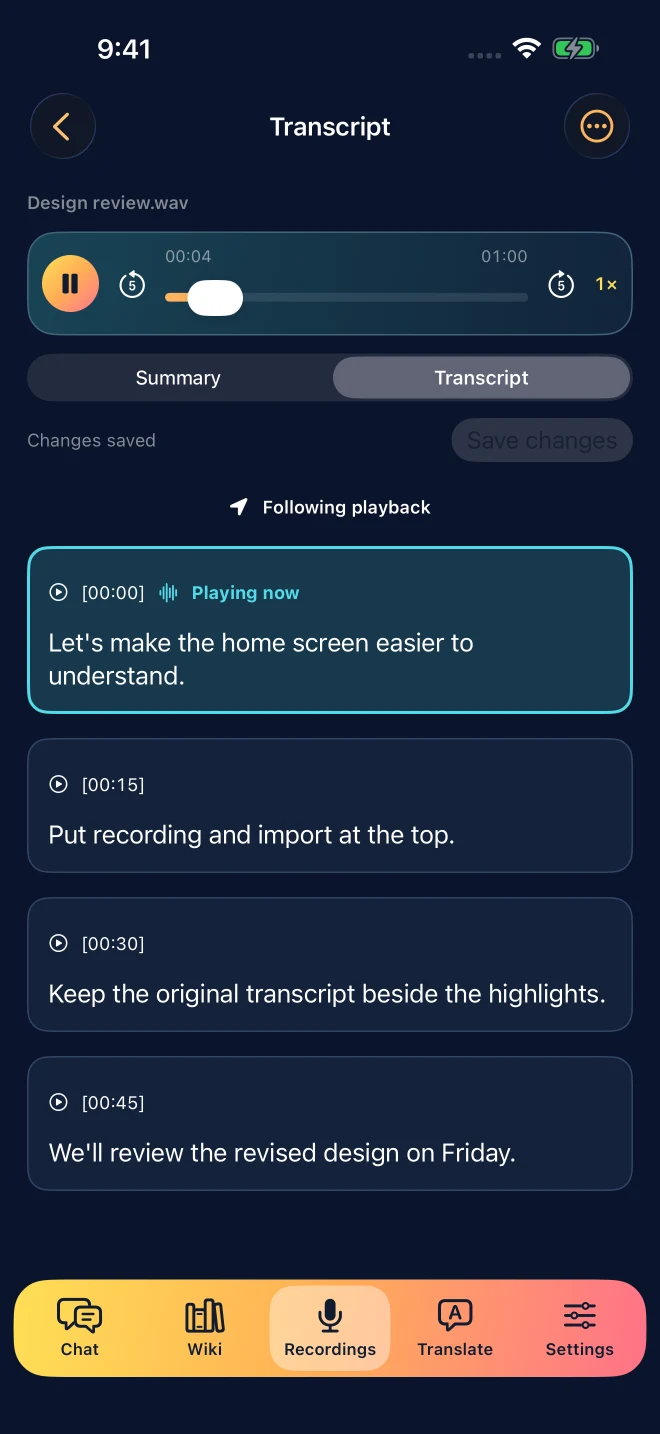
After transcription: listen while editing, fix sections, source highlights
Open the transcript and press play. The paragraph that matches the current playback position is highlighted, and the view follows the recording as it plays. When you scroll, search or start editing, following pauses so the text you are working on stays put. Tap Return to playback position to pick it up again. The highlight moves paragraph by paragraph using timestamps; it does not track individual words.
Edit the text where you hear a mistake, then save. Pay close attention to names, numbers, dates, product names and negatives, since one wrong word can flip the meaning of a sentence. LocalBrain keeps the original transcript, so your corrections never overwrite what the model first produced.
Source highlights are passages that AI picks out of the current transcript. Each one is shown as an excerpt with a timestamp, and tapping the timestamp replays that part of the audio. Because highlights quote the transcript, a recognition error in the text will also appear in the excerpt, so replay anything important. After you save edits, older highlights are marked as needing an update; regenerate them when you want them based on the corrected text. The full walkthrough, including what to do when a step fails, is in how to edit an iPhone transcript while listening.
From transcript to notes you keep
Audio, the finished transcript, your saved edits and highlights all stay in LocalBrain's local recordings workspace. You can keep listening and editing there for as long as you like without doing anything else.
When a recording is worth keeping as knowledge, choose Add to knowledge base. That makes the source available for knowledge-based chat, where you can ask questions about it on your iPhone. The recording itself stays in the recordings workspace after you add it. If you edit the transcript later, the saved knowledge version is not silently replaced; updating it asks for your confirmation. LocalBrain does not create calendar events, reminders or tasks from a recording. For meetings in particular, listen, edit and save your meeting transcript covers the same flow from a meeting angle.
Long recordings and multiple languages
LocalBrain processes audio in short windows and saves completed segments as checkpoints. If transcription is interrupted, reopen the recording and retry: completed parts are kept, and an unfinished result is never presented as a complete transcript. If the transcript finishes but highlights fail, you can still listen, edit and save, then retry highlights without transcribing the audio again.
For files longer than 10 minutes you need active Pro. Very long recordings still depend on free storage and memory, and they take longer to process.
For language, WhisperKit detects what is spoken and keeps the transcript in that language. Background noise, accents and overlapping voices affect recognition, and recordings that switch languages often may need more correction. Check important passages against the audio before relying on them. If you need to understand what offline processing covers in detail, see what an offline transcription app does on iPhone.
Common questions
Does it work without internet?
In LocalBrain, yes, once the required transcription and local language models are on your iPhone. The first model download needs a connection, and so do App Store purchases and any web import you choose. After that, transcription, editing and source highlights run offline.
Are my recordings uploaded?
LocalBrain processes audio, transcripts and notes on your iPhone. It has no cloud AI fallback and no cloud sync, and you do not need a LocalBrain account. Network access is used for model downloads, App Store transactions and web imports or searches you start yourself.
How long can a recording be?
On the free plan, LocalBrain transcribes up to 10 minutes per file. Active Pro removes that paid limit. Device storage, memory and the source file can still limit very long recordings, and processing time depends on the recording and your iPhone.
Does sharing a voice memo start transcription right away?
No. Sharing saves the audio in the Recordings / Transcript tab first. You start transcription when you are ready, which also lets you check model downloads and free storage before processing begins.
Will LocalBrain label who is speaking?
This release does not promise automatic speaker identification. The transcript is grouped into timestamped paragraphs. You can add names yourself while editing, then save your changes.
Edit a transcript while listening · Offline transcription on iPhone · Meeting transcripts · Pro purchase terms
Download LocalBrain AI on the App Store