LOCALBRAIN / TRANSCRIPT GUIDE
How to edit an iPhone transcript while listening
By TheOriCode · Updated · LocalBrain 1.0.5
In LocalBrain, open a recording’s transcript, play the audio, edit the text and save your changes. The current playback paragraph is highlighted, while editing pauses automatic scrolling. Audio and transcripts remain in a dedicated recordings workspace until you choose to add a source to your knowledge base.
This guide covers recording or importing audio, checking a transcript against the recording, saving corrections and reviewing source highlights. Have a compatible iPhone, enough free storage and a connection available for the first model downloads. You do not need a LocalBrain account or a cloud AI service.
1. Record, import or share an audio file
Open the Recordings / Transcript tab to record in LocalBrain or import a local audio or video file. Video import extracts the audio track for transcription. You can also open an existing audio file in Voice Memos or Files, use the share sheet and select LocalBrain.
Shared audio opens the recordings workspace and saves the source first. It does not create a chat conversation, start transcription automatically or add the recording to the knowledge base. Shared web links follow a separate chat-preview workflow.
2. Download the required models and start transcription
Open the received recording and explicitly start transcription. If a required model is missing, follow the App’s download prompt while online; use the displayed download size to plan storage. Audio recognition uses WhisperKit small on your iPhone, with local language models used for text processing and highlights.
Once the required models are ready, transcription and source highlights can run offline. Initial downloads, web imports, web search and App Store transactions still need a connection. Free transcription supports up to 10 minutes per file; active Pro removes that paid limit, but technical limits still apply.
3. Follow the recording and edit the transcript
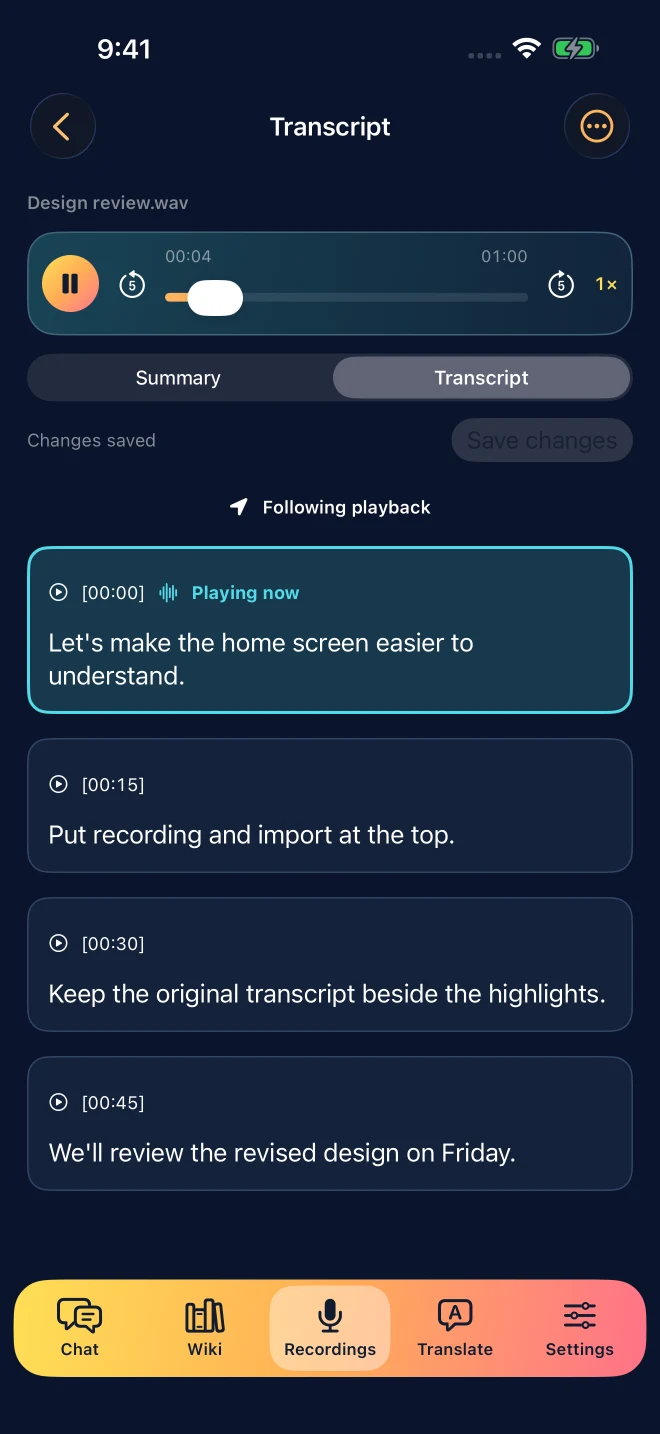
Open the transcript and start playback. The current paragraph receives a visible playback marker. Listen to a passage, edit its text and keep listening as needed; the original transcript remains available. Check names, amounts, product names, dates and negative statements carefully, because an incorrect word can change the meaning.
Playback follows the current paragraph by default. Manual scrolling, search navigation or editing pauses following so the screen does not pull away from your work. Use Return to playback position to resume following. This locates paragraphs using their timestamps; it is not word-level highlighting.
4. Save your corrections and review source highlights
Save your edits when you have checked the passage. Saving text does not silently regenerate highlights or update an existing knowledge source. Older highlights are marked as needing an update after the transcript changes; regenerate them when you want a result based on the current text.
AI selects source passages, and the App presents those transcript excerpts with replay timestamps. Tap a timestamp to hear the supporting audio. The result is source highlights rather than freely rewritten conclusions. An excerpt can still contain recognition mistakes, so use the recording to verify important details.
5. Keep it in recordings, or explicitly add it to knowledge
Audio, completed transcripts, saved edits and source highlights stay in the local recordings workspace. You do not need to add them to the knowledge base to keep listening and editing. Choose Add to knowledge base only when you want a source available for knowledge-based chat.
The recording stays in its workspace after you add the source. Later transcript edits do not silently replace the saved knowledge version; updating it requires your confirmation. This workflow does not automatically create calendar events, reminders or tasks.
If a step fails
- A model is not ready: reconnect and retry the download. Wait for the required assets to finish before testing offline processing.
- Transcription was interrupted: reopen the recording and retry the incomplete step. Completed segments are kept as checkpoints; unfinished output is not treated as a complete transcript.
- The transcript exists but highlights failed: keep listening, editing and saving the transcript. Retry highlight generation without retranscribing completed audio.
- The screen stopped following playback: this is expected after scrolling, searching or editing. Use Return to playback position when you are ready.
- Highlights no longer match an edited transcript: save your changes and regenerate the highlights. Confirm separately if you also want to update the knowledge source.
Accuracy and scope
Background noise, accents and overlapping voices can affect recognition. Local processing does not guarantee perfect transcription or a fixed completion time. Check the recording before relying on important facts. This release does not promise automatic speaker identification, word-level timing or automatic calendar and reminder creation.
Common questions
Can I edit the transcript while the recording plays?
Yes. Open the transcript, play the recording and edit the text, then save your changes. The current paragraph is highlighted. Editing pauses automatic scrolling so playback does not move the text you are working on.
Why did the transcript stop following playback?
Manual scrolling, search navigation and editing pause automatic following. Choose Return to playback position when you want the transcript to follow the recording again. Paragraph highlighting is not word-by-word alignment.
Does the workflow work offline?
Transcription and source highlights can run on-device after the required transcription and local language models have been downloaded. Initial model downloads, web imports, web search and App Store transactions need a connection.
Is a completed recording added to the knowledge base automatically?
No. Audio, transcripts, saved edits and highlights stay in the recordings workspace. You must choose Add to knowledge base. Later transcript edits also require confirmation before updating an existing knowledge source.
Are source highlights a rewritten meeting summary?
Source highlights are passages selected from the current transcript, with timestamps for replay. They are not freely rewritten meeting conclusions. Recognition errors can remain in the excerpts, so replay important details.
How long can a free recording be?
Free transcription supports files up to 10 minutes each. Active Pro removes that paid length limit, while device, memory and source limitations still apply. Processing speed and recognition quality vary with the recording and device.
閱讀繁體中文指南 · What offline processing means · Pro purchase terms
Download LocalBrain AI on the App Store